Cloudflare R2 Image Hosting with Workers and D1
Build a Cloudflare R2 image host with a custom domain, authenticated Worker upload API, D1 metadata, restricted CORS, caching, and cost controls.
Use an R2 custom domain for public image delivery and keep upload, listing, and deletion behind an authenticated Worker. D1 can store searchable metadata, while a small Pages application provides the management interface.
The public and management surfaces should remain separate. Readers need public access to image URLs, but only the owner should reach the Worker API or management page.
Chinese version of this article
This article builds a personal image hosting workflow for a static blog:
- Upload images.
- Compress images automatically.
- Generate stable public image URLs.
- Browse uploaded images.
- Copy Markdown image syntax with one action.
- Delete images that are no longer needed.
- Keep the cost low enough for personal use.
Choose R2 for public image delivery
Markdown keeps a static blog portable, but image storage needs its own lifecycle.
Keeping images in the blog repository increases clone and deployment size over time. A small cloud server can also serve images, but it puts media traffic on the same machine as the site.
Object storage is a better fit for image hosting. Cloudflare R2 is attractive here because:
- Its object storage model matches immutable image files.
- It supports custom domains.
- It does not charge egress fees, which is friendly for read-heavy personal blog traffic.
- It works well with Workers, D1, and Pages in the same platform.
Cloudflare’s pricing and free quotas should be checked on the official page. This article focuses on the structure and tradeoffs that matter for a personal image host: Cloudflare R2 Pricing.
R2 is not the only option. Alibaba Cloud OSS, Tencent Cloud COS, and AWS S3 can all be used for similar setups. R2 is a good fit here mainly because a personal blog has mostly static image traffic, and Cloudflare’s egress policy and ecosystem match that use case well.
Separate public images from the management API
The final architecture looks like this:
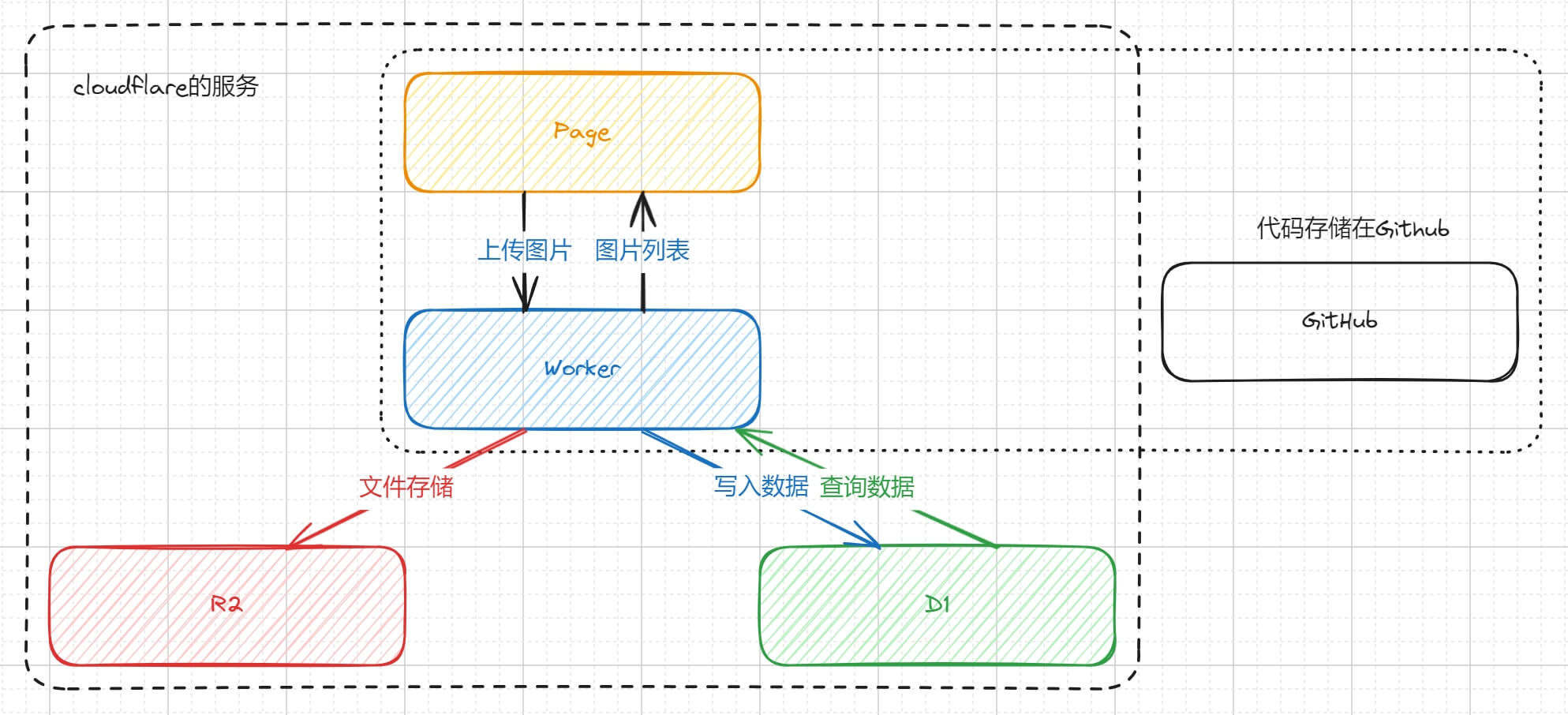
Cloudflare services used:
- R2: stores image files.
- D1: stores image metadata, such as file name, URL, created time, and size.
- Workers: provides upload, query, and delete APIs.
- Pages: hosts the frontend UI.
Additional services:
- GitHub: stores frontend and Worker code.
- TinyPNG/Tinify: compresses images.
- Custom domain: provides long-term stable image URLs.
Keep the trust boundary explicit:
| Surface | Access | Purpose |
|---|---|---|
images.example.com |
Public | Serves immutable images from the R2 custom domain |
images-admin.example.com |
Private | Hosts the management UI, preferably behind Cloudflare Access |
images-api.example.com |
Private | Runs the Worker upload, query, and delete API |
Do not embed an admin token in a static Pages bundle. For a browser-based management UI, protect the admin and API hostnames with Cloudflare Access. A bearer token can remain as a second check or a local tool credential, but it must be entered at runtime and kept out of source code, build variables exposed to the browser, and localStorage.
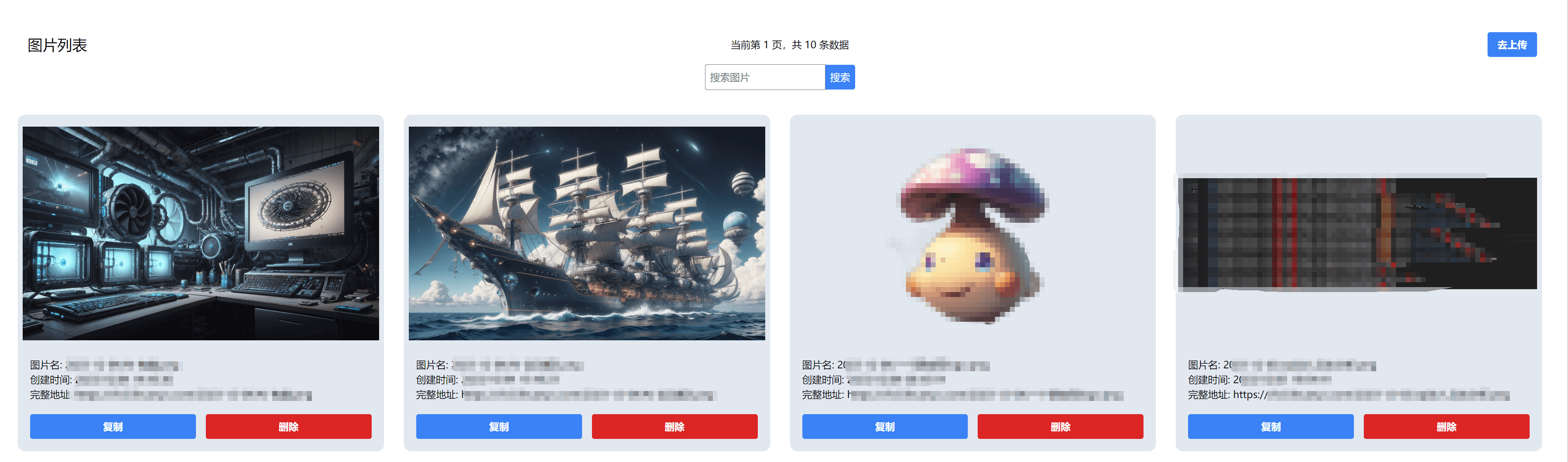
The finished app looks roughly like this:

Create the R2 bucket and custom domain
Create an R2 bucket in the Cloudflare dashboard, for example:
image-storage
After the bucket is created, the first thing to solve is public access. R2 buckets are private by default, but an image host needs URLs that browsers can load.
Cloudflare provides two options:
- Use public bucket access.
- Bind a custom domain.
For a personal blog, a custom domain is the better long-term choice, for example:
https://aipaint.lihuanyu.com
Cloudflare documents public buckets and custom domains here: Public buckets and custom domains.
Relying on the r2.dev preview domain for long-term production use is risky. It is not intended as a permanent production URL, and access from mainland China may not be stable. A custom domain is a better fit for URLs that will be embedded in old posts for years.
Add D1 metadata when R2 listing is not enough
R2 can list objects by prefix and paginate with a cursor, so a basic image browser does not require another database. Add D1 when the management UI needs searchable original names, stable numeric IDs, custom ordering, or metadata that should not live on the object itself.
Create a D1 database, for example:
image-storage-record
Table schema:
CREATE TABLE IF NOT EXISTS images (
  id INTEGER PRIMARY KEY AUTOINCREMENT,
  object_key TEXT NOT NULL UNIQUE,
  original_name TEXT NOT NULL,
  image_url TEXT NOT NULL,
  content_type TEXT,
  size INTEGER NOT NULL DEFAULT 0,
  created_at INTEGER NOT NULL
);

CREATE INDEX IF NOT EXISTS idx_images_created_at ON images(created_at);
Field meanings:
object_key: the object key in R2, for example2026-05-03/uuid.png.original_name: the original uploaded file name.image_url: the public image URL.content_type: the image MIME type.size: the final size stored in R2.created_at: creation timestamp.
For a personal image host, D1 is enough for this metadata. PostgreSQL or MySQL would add operational work without improving this workflow.
Configure Worker bindings and secrets
The Worker accesses R2 and D1 through bindings. A wrangler.toml can look like this:
name = "image-storage-worker"
main = "src/index.ts"
compatibility_date = "2026-08-01"

[vars]
PUBLIC_IMAGE_BASE_URL = "https://aipaint.lihuanyu.com"
ADMIN_ORIGIN = "https://images-admin.example.com"

[[r2_buckets]]
binding = "IMAGE_BUCKET"
bucket_name = "image-storage"

[[d1_databases]]
binding = "DB"
database_name = "image-storage-record"
database_id = "12345678-1234-1234-1234-123456789012"
The database_id must match the database created for the project. The wrangler d1 create image-storage-record command returns this value, and the dashboard also shows it on the database details page.
If TinyPNG is used, the API key should be stored as a secret instead of being written into wrangler.toml:
wrangler secret put TINIFY_API_KEY
Add an admin token as a secret when the Worker keeps the bearer-token check:
wrangler secret put ADMIN_TOKEN
Worker binding configuration is documented here: Wrangler configuration.
Implement the authenticated Worker API
The following simplified Worker includes:
OPTIONS: handles CORS preflight requests.POST /upload: uploads an image and optionally compresses it with TinyPNG.GET /query: queries images with pagination.DELETE /delete?id=1: deletes the image object and metadata.
interface Env {
IMAGE_BUCKET: R2Bucket;
DB: D1Database;
PUBLIC_IMAGE_BASE_URL: string;
ADMIN_ORIGIN: string;
TINIFY_API_KEY?: string;
ADMIN_TOKEN?: string;
}
export default {
async fetch(request: Request, env: Env): Promise<Response> {
const url = new URL(request.url);
const corsHeaders = createCorsHeaders(request, env);
if (!corsHeaders) {
return new Response('Origin not allowed', { status: 403 });
}
if (request.method === 'OPTIONS') {
return new Response(null, { headers: corsHeaders });
}
if (!isAuthorized(request, env)) {
const response = json(
{ success: false, message: 'Unauthorized' },
401,
);
return withCors(response, corsHeaders);
}
if (request.method === 'GET' && url.pathname === '/query') {
return withCors(await handleQuery(request, env), corsHeaders);
}
if (request.method === 'POST' && url.pathname === '/upload') {
return withCors(await handleUpload(request, env), corsHeaders);
}
if (request.method === 'DELETE' && url.pathname === '/delete') {
return withCors(await handleDelete(request, env), corsHeaders);
}
const response = json(
{ success: false, message: 'Not found' },
404,
);
return withCors(response, corsHeaders);
},
};
function isAuthorized(request: Request, env: Env) {
const authorization = request.headers.get('Authorization');
return Boolean(env.ADMIN_TOKEN) &&
authorization === `Bearer ${env.ADMIN_TOKEN}`;
}
async function handleUpload(request: Request, env: Env) {
const formData = await request.formData();
const file = formData.get('file');
if (!(file instanceof File)) {
return json({ success: false, message: 'Missing file' }, 400);
}
if (!file.type.startsWith('image/')) {
return json({ success: false, message: 'Only image files are allowed' }, 400);
}
const objectKey = createObjectKey(file.name);
const image = env.TINIFY_API_KEY
? await compressWithTinify(file, env.TINIFY_API_KEY)
: {
body: await file.arrayBuffer(),
contentType: file.type || 'application/octet-stream',
size: file.size,
};
await env.IMAGE_BUCKET.put(objectKey, image.body, {
httpMetadata: {
contentType: image.contentType,
cacheControl: 'public, max-age=31536000, immutable',
},
});
const baseUrl = env.PUBLIC_IMAGE_BASE_URL.replace(/\/$/, '');
const imageUrl = `${baseUrl}/${objectKey}`;
const createdAt = Date.now();
await env.DB.prepare(
`INSERT INTO images
(object_key, original_name, image_url, content_type, size, created_at)
VALUES (?, ?, ?, ?, ?, ?)`,
)
.bind(objectKey, file.name, imageUrl, image.contentType, image.size, createdAt)
.run();
return json({
success: true,
url: imageUrl,
markdown: ``,
});
}
async function handleQuery(request: Request, env: Env) {
const url = new URL(request.url);
const pageNum = Math.max(Number(url.searchParams.get('pageNum')) || 1, 1);
const pageSize = Math.min(Math.max(Number(url.searchParams.get('pageSize')) || 20, 1), 50);
const offset = (pageNum - 1) * pageSize;
const list = await env.DB.prepare(
`SELECT id, object_key, original_name, image_url, content_type, size, created_at
FROM images
ORDER BY id DESC
LIMIT ? OFFSET ?`,
)
.bind(pageSize, offset)
.all();
const count = await env.DB.prepare(`SELECT COUNT(*) AS total FROM images`).first<{
total: number;
}>();
return json({
success: true,
results: list.results,
total: count?.total || 0,
});
}
async function handleDelete(request: Request, env: Env) {
const url = new URL(request.url);
const id = Number(url.searchParams.get('id'));
if (!Number.isInteger(id) || id <= 0) {
return json({ success: false, message: 'Invalid id' }, 400);
}
const row = await env.DB.prepare(`SELECT object_key FROM images WHERE id = ?`)
.bind(id)
.first<{ object_key: string }>();
if (!row) {
return json({ success: false, message: 'Image not found' }, 404);
}
await env.IMAGE_BUCKET.delete(row.object_key);
await env.DB.prepare(`DELETE FROM images WHERE id = ?`).bind(id).run();
return json({ success: true });
}
async function compressWithTinify(file: File, apiKey: string) {
const source = await file.arrayBuffer();
const auth = `Basic ${btoa(`api:${apiKey}`)}`;
const shrink = await fetch('https://api.tinify.com/shrink', {
method: 'POST',
headers: {
Authorization: auth,
'Content-Type': file.type || 'application/octet-stream',
},
body: source,
});
if (!shrink.ok) {
const message = await shrink.text();
throw new Error(`TinyPNG shrink failed: ${shrink.status} ${message}`);
}
const outputUrl = shrink.headers.get('Location');
if (!outputUrl) {
throw new Error('TinyPNG did not return output location');
}
const optimized = await fetch(outputUrl, {
headers: {
Authorization: auth,
},
});
if (!optimized.ok) {
const message = await optimized.text();
throw new Error(`TinyPNG download failed: ${optimized.status} ${message}`);
}
const body = await optimized.arrayBuffer();
return {
body,
contentType: optimized.headers.get('Content-Type') || file.type || 'application/octet-stream',
size: Number(optimized.headers.get('Content-Length')) || body.byteLength,
};
}
function createObjectKey(filename: string) {
const extension = filename.includes('.') ? filename.split('.').pop() : 'bin';
const date = new Date().toISOString().slice(0, 10);
return `${date}/${crypto.randomUUID()}.${extension}`;
}
function createCorsHeaders(
request: Request,
env: Env,
): Record<string, string> | null {
const origin = request.headers.get('Origin');
if (origin && origin !== env.ADMIN_ORIGIN) {
return null;
}
const headers: Record<string, string> = {
'Access-Control-Allow-Methods': 'GET,POST,DELETE,OPTIONS',
'Access-Control-Allow-Headers': 'Content-Type,Authorization',
Vary: 'Origin',
};
if (origin) {
headers['Access-Control-Allow-Origin'] = origin;
}
return headers;
}
function withCors(response: Response, headers: Record<string, string>) {
const wrapped = new Response(response.body, response);
for (const [name, value] of Object.entries(headers)) {
wrapped.headers.set(name, value);
}
return wrapped;
}
function json(data: unknown, status = 200) {
return new Response(JSON.stringify(data), {
status,
headers: {
'Content-Type': 'application/json; charset=utf-8',
},
});
}
There are a few details worth calling out.
First, the upload API should verify image/*. Otherwise the image host can accidentally become arbitrary file storage.
Second, the API now denies management requests when ADMIN_TOKEN is missing. A local client or a management UI that asks for the token at runtime can send:
Authorization: Bearer your_admin_token_here
Do not compile that value into frontend JavaScript. Cloudflare Access is the better browser-facing boundary because it authenticates the operator before the request reaches the Worker.
Third, TinyPNG’s API does not return output.url in the JSON response from the shrink request. After the compression request succeeds, read the Location response header, then request that URL to download the optimized image. The API behavior is documented here: Tinify API reference.
Fourth, using the original file name as object_key causes problems with non-ASCII names, spaces, and overwrites. A date prefix plus UUID is more robust.
Fifth, R2 and D1 do not share a transaction. If the D1 insert fails after an R2 upload, delete the new object or record it for reconciliation. Apply the same rule when a delete succeeds in one service but fails in the other.
Build a focused management interface
Any frontend framework works. The example implementation used SolidJS, but React, Vue, or Svelte can implement the same small set of management actions.
The core functions are upload, query, and delete.
Upload:
async function uploadImage(file: File) {
  const formData = new FormData();
  formData.append('file', file);

  const response = await fetch(`${apiBaseUrl}/upload`, {
    method: 'POST',
    headers: {
      Authorization: `Bearer ${adminToken}`,
    },
    body: formData,
  });

  if (!response.ok) {
    throw new Error(await response.text());
  }

  return response.json();
}
Query:
async function queryImages(pageNum = 1, pageSize = 20) {
  const response = await fetch(
    `${apiBaseUrl}/query?pageNum=${pageNum}&pageSize=${pageSize}`,
    {
      headers: {
        Authorization: `Bearer ${adminToken}`,
      },
    },
  );

  if (!response.ok) {
    throw new Error(await response.text());
  }

  return response.json();
}
Delete:
async function deleteImage(id: number) {
  const response = await fetch(`${apiBaseUrl}/delete?id=${id}`, {
    method: 'DELETE',
    headers: {
      Authorization: `Bearer ${adminToken}`,
    },
  });

  if (!response.ok) {
    throw new Error(await response.text());
  }

  return response.json();
}
The UI needs only a few interactions:
- Select or drag an image file.
- Show the image URL and Markdown after upload.
- List thumbnails, original file names, created times, and sizes.
- Copy URL.
- Copy Markdown.
- Delete an image.
The frontend can be deployed to Cloudflare Pages. It can live in the same repository as the Worker API or in a separate repository. For a personal project, keeping them separate is often clearer: frontend issues do not affect image access, and the Worker API can be maintained independently.
Keep image URLs stable and cacheable
For an image host, URL stability matters most. Once an image URL is written into a post, it should not change casually.
A practical setup:
- Use a separate subdomain for images, such as
aipaint.lihuanyu.com. - Bind the R2 bucket to that subdomain.
- Use only that subdomain in blog posts.
- Avoid embedding Worker preview domains or Pages preview domains in posts.
The Worker example stores UUID-based object keys with Cache-Control: public, max-age=31536000, immutable. Do not replace content at one of these URLs. Upload a new object and update the post when an image changes.
Estimate R2 cost before adding other services
Cloudflare’s published R2 Standard rates on August 1, 2026 are:
| Item | Included each month | Standard rate after the free tier |
|---|---|---|
| Storage | 10 GB-month | $0.015 per GB-month |
| Class A operations | 1 million | $4.50 per million requests |
| Class B operations | 10 million | $0.36 per million requests |
| Internet egress | Free | Free |
Cloudflare rounds billable usage up to the next billing unit. The free tier applies to Standard storage, not Infrequent Access storage. Check the current R2 pricing before relying on these figures.
The complete workflow can also incur costs from:
- R2 storage and requests.
- D1 reads and writes.
- Workers requests.
- TinyPNG compression usage.
For a personal blog below the free-tier limits, R2 storage and operations can remain free. TinyPNG needs a separate calculation because it is not a Cloudflare service, and its quota follows Tinify’s own rules. Compression can also run locally before upload.
The practical tradeoff is:
- R2 is a good place to store images long term.
- D1 only stores metadata, so its cost is negligible for this use case.
- Workers is well suited for lightweight APIs like this.
- TinyPNG is useful, but not required for the first version.
For a writing workflow, the first version can skip TinyPNG and focus on upload, query, and copying Markdown. Compression can be added later when image volume or page load time starts to matter.
Add controls before supporting other users
This setup is suitable for a personal image host. It should not be exposed as a public platform without more work.
If it is opened to other users, at least these parts are needed:
- User accounts.
- Permission isolation.
- Upload rate limits.
- File size limits.
- Content safety checks.
- Storage quotas.
- Delete audit logs.
- Hotlink protection or access control.
For personal use, the most important point is to keep the upload API protected. Otherwise it can be abused as public file storage.
Build the smallest useful version first
Cloudflare R2 is a good fit for a personal blog image host, but stopping at “dashboard upload plus manually assembled URL” leaves too much friction in the writing workflow. A useful image host should connect upload, compression, list view, copy, and delete.
A reasonable implementation order is:
- Create an R2 bucket and bind a custom image domain.
- Add a Worker upload API.
- Store image metadata in D1.
- Build a small frontend page.
- Add TinyPNG or another compression step later.
This keeps the stability of object storage while making image insertion smooth enough for regular blogging.
Loading discussion...
Discussion failed to load. Reload